
mymusik-mcp
io.github.shagg-ai/mymusik-mcp
Search your own music library and control a running MyMusik app with the permissions you choose.
Documentation
MyMusik MCP
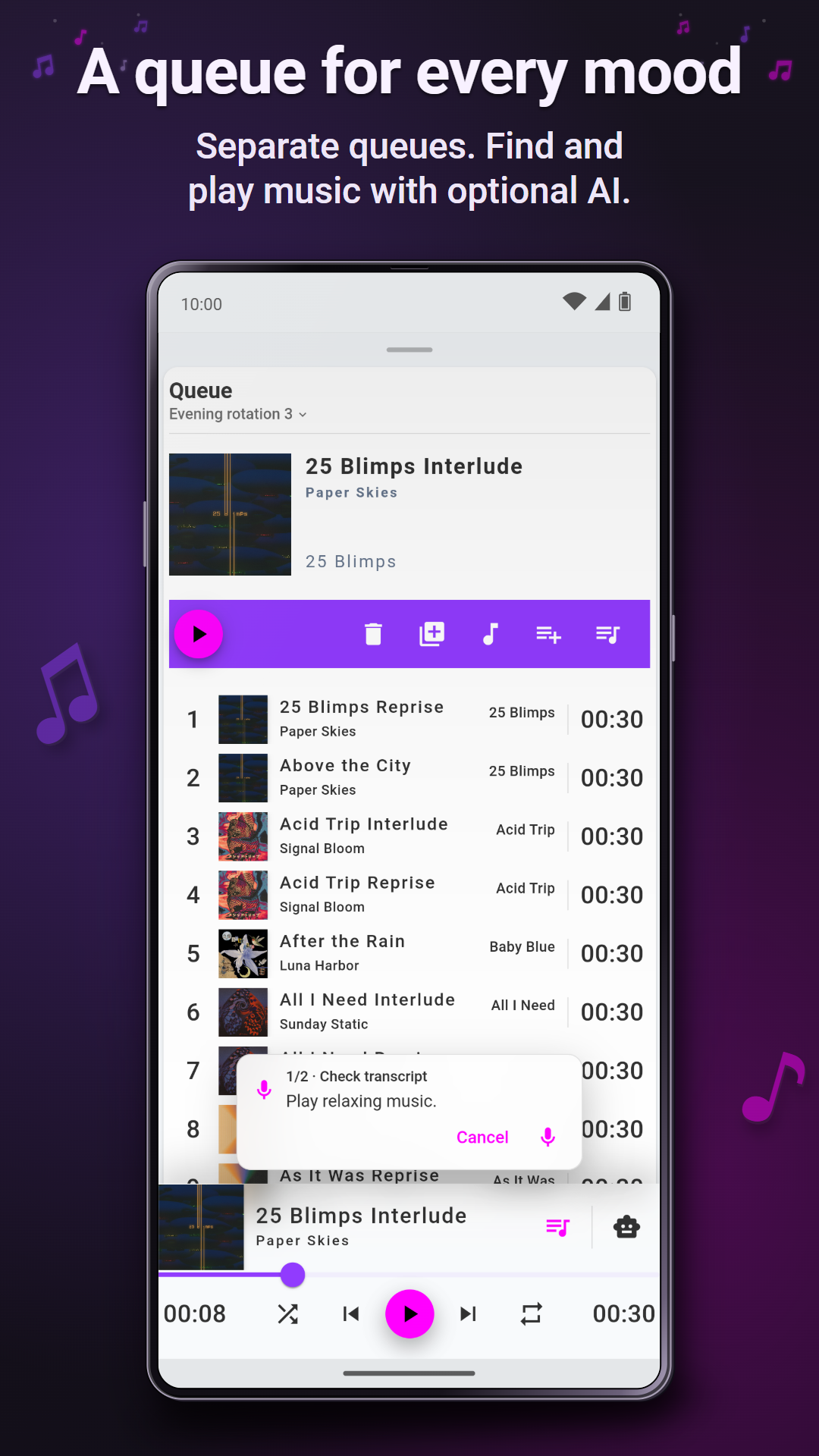
Ask Claude, Codex or another MCP client to play music from your own library. Try “Play my Road Trip playlist.” The music plays in MyMusik, and you can pause, skip or pick the next album from the same chat. You can also import recordings, cut clips and organize your collection.
The connector runs on the computer that runs your MCP client. It talks to your open MyMusik app on the same computer or over your private network. You choose what it can do and when its access expires.
Get MyMusik · Windows on the Microsoft Store · Android on Google Play · Linux AppImage · MyMusik website
Get the connector · Release downloads · Official MCP Registry · Pair and find your first albums
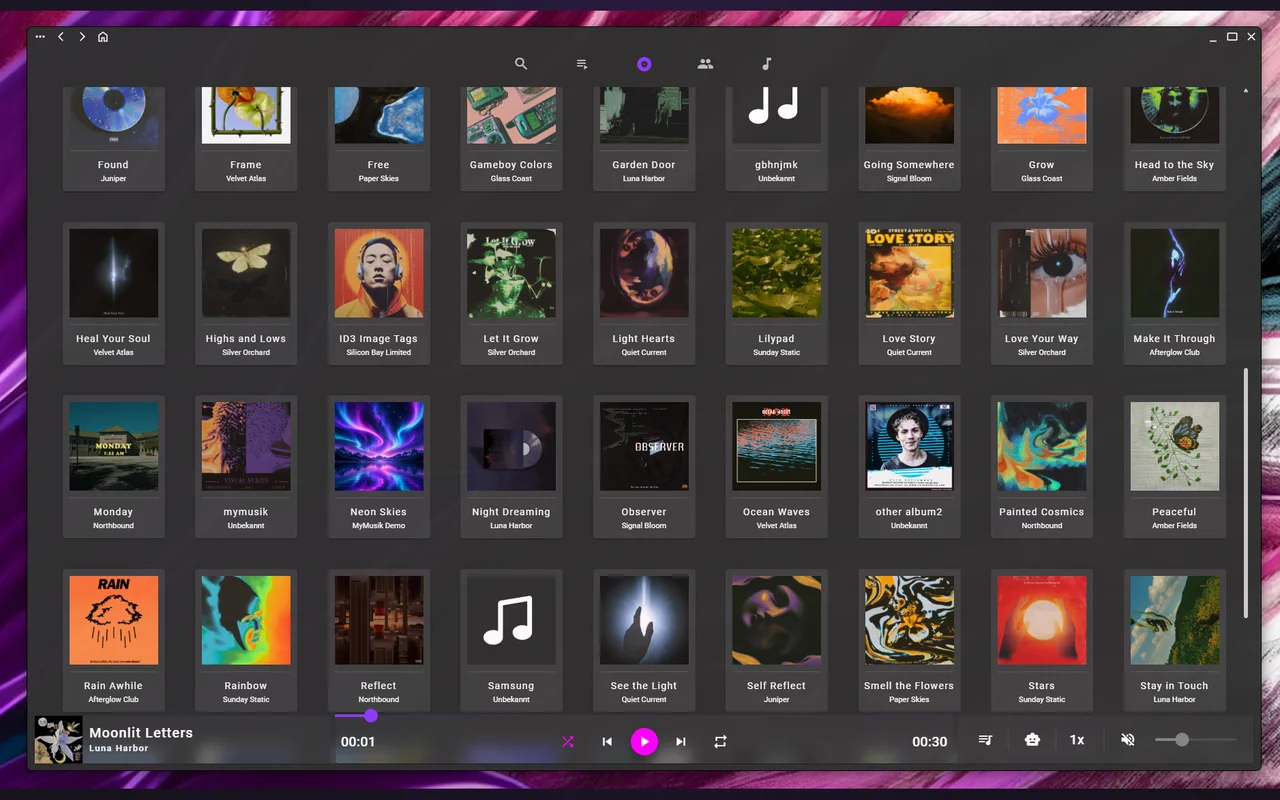
MyMusik is an offline music player and library manager for the files you own. Import your MP3, FLAC and WAV files, browse by album or artist, and keep separate queues for different listening sessions. Local playback is free and works without an account.
What you can ask
Choose Remote playback when you pair to try the first three rows. Version 0.2.0 adds a direct tool for pausing, resuming and skipping in the current queue. Use the name of a song, album or playlist from your own library.
| I want to… | What to say |
|---|---|
| Play music | “Play my Road Trip playlist.” |
| Pause, resume or skip | “Pause the music.” · “Keep playing.” · “Skip this song.” |
| Choose what plays next | “Let this song finish, then play my Friday rehearsal album.” |
| Find something to listen to | “Which albums by Paper Skies do I have? Show me the tracks on the first one.” |
| Make a playlist | “Make a playlist called Night Drive from the songs I’ve tagged Driving.” |
| Sort albums into folders | “In MyMusik, create a Live Sets folder with a subfolder for each artist. Sort my albums tagged Live into those folders.” |
| Add tags to several tracks | “Tag every song on Friday rehearsal as Practice. Keep the tags I already have.” |
| Fix artist names | “Show me the tracks credited to ‘PaperSkies’ so I can pick which ones to rename to ‘Paper Skies’.” |
| Import music | “Import the audio from my Rehearsals folder and tell me which files need review.” |
| Trim a recording | “Cut the first eight seconds of count-in from Friday rehearsal.” |
| Save a clip as a new track | “Save 01:12 to 01:42 from Friday rehearsal as a new track called Bridge Idea.” |
| Export a playlist | “Export Night Drive as an M3U8 playlist and make a ZIP of its MP3s.” |
Choose what your assistant can change. Use Read only to browse, Remote playback to listen, Library editor for playlists, folders, tags and track details, or Import manager for imports and audio edits. To save a clip as a new library track, choose Custom and allow writes to both Imports and files and Music library. Imports need a source MyMusik can read, cuts need editable local audio, and downloads need a client that can save files.
To switch access on an existing connection, apply the new permissions in MyMusik, copy a fresh invitation, run mymusik-mcp pair again and reconnect your client. Illustrated permissions guide
Pair and find your first albums
-
Install MyMusik, add some music and keep the app running. If the app is on a different device, put both devices on the same private network and enable Allow Remote Access in MyMusik’s web server settings.
-
On the computer running your MCP client, install Python 3.10 or newer and run the following command. If you use a virtual environment, activate it first.
python -m pip install https://github.com/shagg-ai/mymusik-mcp/releases/download/v0.2.0/mymusik_mcp-0.2.0-py3-none-any.whl -
In MyMusik, open Insights → Connect a device. Select the shield, choose Read only to browse or Remote playback to play music, pick a session duration, then Apply → Copy agent prompt.
-
Run the pairing command below. At the hidden input, paste only the invitation URL containing
#grant=from the copied prompt and press Enter. Each invitation works once.mymusik-mcp pair -
Connect your MCP client, then ask “List three albums from my MyMusik library.” Open Albums in MyMusik to compare the names. With Remote playback, follow up with “Play the first one.”
When access expires, copy a fresh invitation, run mymusik-mcp pair again and reconnect or restart the server in your client. Illustrated pairing guide
Connect your MCP client
Codex. With the installed mymusik-mcp executable on your PATH, run these commands and start a new local chat.
codex plugin marketplace add shagg-ai/mymusik-mcp
codex plugin add mymusik@mymusik-plugins
Cursor. Install the wheel and pair on the computer running Cursor using the steps above. Make sure mymusik-mcp is on Cursor’s PATH. To try the plugin from GitHub, clone this repository into ~/.cursor/plugins/local/mymusik, reload Cursor, and enable MyMusik under Customize. Open a chat and ask “List three albums from my MyMusik library.” With Remote playback access, try “Resume playback in MyMusik.” The plugin uses your existing pairing profile.
Docker Desktop. From a checkout of this repository, build the connector and pair it with your running MyMusik app. Open Insights → Connect a device, choose the permissions and duration, and paste the invitation URL from the copied prompt at the hidden input.
docker build -t mymusik-mcp:local .
docker run --rm -it -v mymusik-profile:/var/lib/mymusik/mymusik-mcp mymusik-mcp:local python -B -m mymusik_mcp.cli pair
Run the following command as your MCP client's stdio server. The connector uses the same private Docker volume. Repeat the pairing command when the session expires. For a local HTTP invitation, Docker Desktop forwards the connection to the host where MyMusik is running.
docker run --rm -i -v mymusik-profile:/var/lib/mymusik/mymusik-mcp:ro mymusik-mcp:local
Gemini CLI. After pairing, install the extension from the repository and start a new Gemini CLI session. The extension runs the bundled connector with python on your PATH.
gemini extensions install https://github.com/shagg-ai/mymusik-mcp
Claude Code. Clone this repository and start a local session with the bundled plugin. It uses python on your PATH and reads the session you paired above.
git clone https://github.com/shagg-ai/mymusik-mcp.git
cd mymusik-mcp
claude --plugin-dir ./plugins/mymusik
Other local MCP clients. If your client accepts MCP bundles, download the MCPB and open it in the client. For clients with an mcpServers configuration, use this configuration.
{
  "mcpServers": {
    "mymusik": {
      "command": "mymusik-mcp",
      "args": ["stdio"]
    }
  }
}
If a desktop client cannot find the command, use the absolute path to the installed executable. For Codex, launch it from the activated environment or install the downloaded wheel with pipx, add the pipx applications directory to PATH and restart Codex. The command also defaults to stdio when called without arguments.
Permissions and stored data
Pair under the operating-system account that runs your client. The connector saves the session in %LOCALAPPDATA%/mymusik-mcp/connection.profile on Windows using user-scoped DPAPI. On other systems it uses a private file with mode 0600 under $XDG_CONFIG_HOME/mymusik-mcp or ~/.config/mymusik-mcp. Delete the profile to remove the saved session. Keep invitations and profiles private. Your selected MCP client receives the tool results.
To pair a second instance, pass the same --profile PATH to both mymusik-mcp pair and mymusik-mcp stdio. From a source checkout, you can also pair with python plugins/mymusik/mymusik_mcp/cli.py pair.
https://github.com/shagg-ai/mymusik-mcp/releases/download/v0.2.0/mymusik-mcp.mcpb# mcpb: https://github.com/shagg-ai/mymusik-mcp/releases/download/v0.2.0/mymusik-mcp.mcpb