
anycubic-slicer-mcp
io.github.pri-te-sh/anycubic-slicer-mcp
Let AI agents slice, preview and diagnose 3D prints with Anycubic Slicer Next, and watch the printer
Documentation





Website · Install · Tools · FAQ · Contribute
Anycubic Slicer MCP
Anycubic Slicer MCP is an open-source Model Context Protocol server for Anycubic Slicer Next on Windows and macOS. It lets Claude, Cursor, Codex, Antigravity, DeepSeek Harness or any other MCP client slice STL, 3MF, OBJ and STEP files, preview the G-code and plan a print before you commit filament to it.
You can ask for things like:
- "Slice gear.stl for my Kobra X with 20% gyroid and three walls, and show me layer 12."
- "Here's a photo of my new spool. Make a filament profile from the label."
- "This print came out stringy and the corners lifted. What should I change?"
- "This bracket gets bent from the side. Make it stronger and tell me what that costs in time."
- "How much filament does this two-colour print waste on colour changes?"
- "Here's a zip of the whole robot kit. Plan the plates, ask me what's unclear, then slice it."
- "My print just paused. What's wrong, and can it carry on?"
The server drives the slicer's own command line on your computer. It never sends a print to your printer, so you still check the preview and press print yourself. If you switch on your printer's LAN mode, it can also read the printer's live state and camera, and pause, resume or stop a print after you say yes.
What it does
Slice from a sentence
slice_model takes preset names (or the selection in the slicer window) and any setting override by name: infill, walls, supports, brim, layer height, temperatures. It handles rotation, scale, copies and multi-colour plates, and writes both a .gcode file and a printer-ready .gcode.3mf.
A real run on the example gear, with a Kobra X and 0.4 mm nozzle: 30m 48s, 9.66 g of PLA, 45 layers at 0.2 mm.
See the toolpaths before printing
| One layer, coloured by feature | Every layer, shaded by height | Shareable print card |
|---|---|---|
 |  | 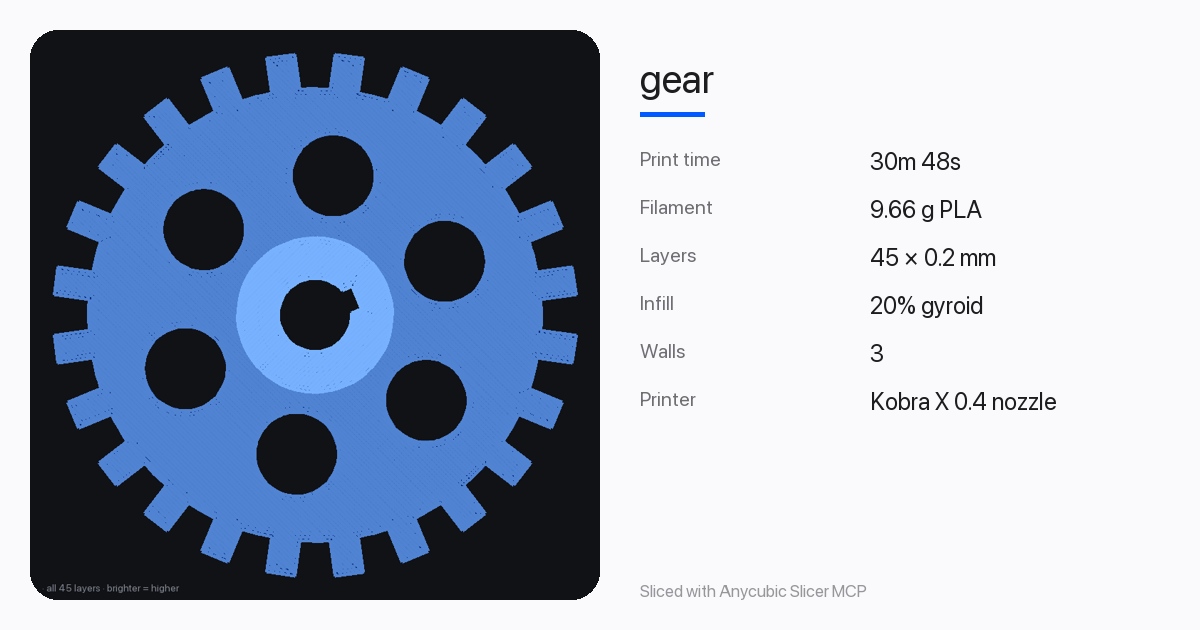 |
preview_gcode also draws a side view for checking overhangs and supports. animate_layers saves a GIF of the print building up.
Filament profile from a photo of the label
Your agent reads the spool label (brand, material, colour, temperature ranges, weight) and create_filament_profile turns it into a preset that inherits from the closest one your printer already has. It shows a preview first and saves only when you confirm. Spools can go into a small local inventory, so the agent can tell you which one has enough left for the next print.
Print doctor
Send photos of a failed print. The agent matches what it sees to one of 13 defects (stringing, warping, layer adhesion, first layer, under and over extrusion, elephant foot, ringing, overhangs, bridging, top surface, layer shift and seams). diagnose_print then suggests setting changes based on the presets you used. When two fixes would push the same setting in opposite directions, it reports the conflict and leaves that setting alone.
Stronger parts
Tell it how the part is loaded (tension, compression, bending, impact or torsion) and in which direction. analyze_strength looks for thin waists in the shape and recommends an orientation and settings. find_best_orientation ranks ways to lay the model on the bed for least support, speed, strength, bed adhesion or a balance of them.
Multi-colour waste
On a single-nozzle printer every colour change flushes filament. In a test on a Kobra X with two 15 mm cubes, one black and one white, 8.31 g of a 9.99 g print went to colour changes. optimize_multicolor measures that waste for your model, tests settings that might reduce it, and recommends one only if every colour is kept and it saves filament. It also suggests layout changes.
Whole projects, with questions first
Point the agent at a folder or a .zip of parts. plan_project finds every model and reads counts from names like clip_x4.stl and from a README. It lays each part in its best orientation and packs the parts onto plates. You can group for the fewest plates or by colour, cap each plate at a number of hours, and keep parts that need supports together.
It doesn't guess when the files are unclear. It returns questions for the agent to put to you, and the blocking ones must be answered before slice_project will run:
- two versions of the same part (
lid_v1,lid_v2): which to print? - a part only a few millimetres across: exported in inches or cm?
- a part bigger than the bed: scale it or skip it?
- parts with no count anywhere: one of each?
- files that look like test pieces: leave them out?
- broken meshes, colour groups, and whether supported parts get their own plates
Each plate is sliced as its own .gcode.3mf. If the slicer can't fit everything on a plate, the extras move to the next one. In a test with an 11-file kit, three questions settled it and the result was one plate of 14 pieces: 2h 32m 23s and 71.62 g.
Watch the printer (LAN mode)
With LAN mode on (printer screen: Settings > Network > LAN Mode), the agent can see what your printer sees. printer_status reports the state, the job's progress and time left, nozzle and bed temperatures against their targets, the filament in each slot and how the last print ended, and any error code with Anycubic's meaning and a link to the fix. printer_camera_snapshot takes a photo with the built-in camera so the agent can look at the bed. Together with the print doctor, that's enough to work out why a print paused and whether it can carry on.
control_print can pause, resume or stop a print. It previews first and only acts after you confirm in the chat. It can't start prints, heat anything or move the head.
Tested on a Kobra X with firmware 2.0.2.8: finding it, reading its status and the camera all work. Pause, resume and stop have so far only been tested against a simulated printer.
It talks to the printer directly over your network, using the protocol the community has documented for the Kobra X, S1 and Kobra 3 family. No Anycubic account is involved. Turning LAN mode on disconnects the printer from Anycubic Cloud and the phone app, and the switch can't be changed while a print is running or paused.
Calibration prints
make_calibration_print generates and slices a temperature tower (it changes the nozzle temperature at each block for you), flow-ratio cubes, retraction towers, or five first-layer squares spread across the bed.
Planning and cost
compare_slices runs up to eight variants side by side. estimate_cost adds electricity and any labour or markup. check_bed_fit says whether a model fits and suggests a 45° turn, scaling, laying it down or splitting it if it doesn't.
Install
You need:
- Anycubic Slicer Next, installed from Anycubic's website and opened once, with your printer selected.
- uv.
Then install the server:
uv tool install --python 3.13 anycubic-slicer-mcp
That puts an anycubic-slicer-mcp command on your PATH (uv tool dir --bin prints where).
To try it without installing, any MCP client can also run it straight from PyPI with uvx anycubic-slicer-mcp. It's listed in the official MCP Registry as io.github.pri-te-sh/anycubic-slicer-mcp.
Let your agent set it up
Copy this into Claude Code, Cursor, Codex, Antigravity or another coding agent. The same prompt is behind the Copy prompt for your agent button on the website.
Set up the Anycubic Slicer MCP server (https://github.com/pri-te-sh/anycubic-slicer-mcp) on this computer and connect it to the AI app you are running in.

1. Check that Anycubic Slicer Next is installed. On macOS look for /Applications/AnycubicSlicerNext.app; on Windows look for C:\Program Files\AnycubicSlicerNext\AnycubicSlicerNext.exe. If it is missing, stop and ask me to install it from Anycubic's website and open it once.
2. Check that uv is installed (run: uv --version). If it is not, show me the official install command from https://docs.astral.sh/uv/getting-started/installation/ and wait for me to run it.
3. Install the server:
   uv tool install --python 3.13 anycubic-slicer-mcp
4. Find the full path of the anycubic-slicer-mcp command (run: uv tool dir --bin).
5. Register it as a stdio MCP server named "anycubic-slicer" in the app you are running in. It needs no arguments or environment variables.
   - Claude Code: claude mcp add anycubic-slicer --scope user -- anycubic-slicer-mcp
   - Codex: codex mcp add anycubic-slicer -- anycubic-slicer-mcp
   - DeepSeek Harness: add an insert entry for the @deepseek-ai/dsh-mcp-client plugin (serverName anycubic-slicer, transport stdio, command anycubic-slicer-mcp) to ~/.dsh/profiles/<profile>/cordis.patch.yml.
   - Cursor, Claude Desktop, Antigravity and others: add {"mcpServers": {"anycubic-slicer": {"command": "<full path from step 4>"}}} to the app's MCP config, keeping any servers already there.
6. Tell me if the app needs a restart to load the server. Once it's loaded, call the slicer_status tool and tell me which printer, process and filament it found.

Don't change anything else on my system, and ask before running any command that needs administrator rights.
Or add it yourself
Claude Code
claude mcp add anycubic-slicer --scope user -- anycubic-slicer-mcp
Codex
codex mcp add anycubic-slicer -- anycubic-slicer-mcp
DeepSeek Harness: put this in ~/.dsh/profiles/desktop/cordis.patch.yml (or your profile's folder), replacing the [] that's there, then restart Harness. It uses Harness's built-in @deepseek-ai/dsh-mcp-client plugin.
- insert:
    - id: mcp-anycubic-slicer
      name: '@deepseek-ai/dsh-mcp-client'
      config:
        serverName: anycubic-slicer
        transport: stdio
        command: anycubic-slicer-mcp
Cursor (~/.cursor/mcp.json), Claude Desktop (claude_desktop_config.json), Antigravity and most other clients:
{
  "mcpServers": {
    "anycubic-slicer": { "command": "anycubic-slicer-mcp" }
  }
}
Desktop apps often don't inherit your shell's PATH. If the server doesn't start, use the full path from uv tool dir --bin, for example /Users/you/.local/bin/anycubic-slicer-mcp or C:\Users\you\.local\bin\anycubic-slicer-mcp.exe.
VS Code (.vscode/mcp.json):
{
  "servers": {
    "anycubic-slicer": { "type": "stdio", "command": "anycubic-slicer-mcp" }
  }
}
Then ask your agent to call slicer_status. It should report the printer you selected in the slicer.
Update or remove
uv tool upgrade anycubic-slicer-mcp
uv tool uninstall anycubic-slicer-mcp
Tools
| Group | Tool | What it does |
|---|---|---|
| Slice | slicer_status | Finds the slicer and reports the printer, process and filament selected in it |
list_presets | Printer, process and filament presets, filtered to your printer | |
get_preset | A preset's settings with inheritance resolved, or a search for setting names | |
save_user_preset | Saves your own preset so it shows up in the slicer app | |
model_info | Size, volume, triangles, pieces, watertight check and build-volume fit | |
slice_model | G-code and .gcode.3mf with overrides, rotation, scale, copies and multi-colour | |
open_in_slicer | Opens a file in the slicer window when you ask | |
| Look | gcode_summary | Time, filament, cost, layers, first-layer time, colour changes, key settings |
preview_gcode | Top view of one layer or all layers, or a side view | |
animate_layers | GIF of the print building up | |
print_card | 1200×630 summary image | |
| Plan | compare_slices | Up to eight variants compared on time, filament and cost |
find_best_orientation | Ranks orientations by goal | |
analyze_strength | Orientation and settings for how the part is loaded | |
check_bed_fit | Fit check with suggestions | |
estimate_cost | Filament, electricity and extras | |
| Filament | create_filament_profile | Filament preset from a spool label |
add_spool / list_spools / update_spool | Local spool inventory | |
| Whole projects | plan_project | Plates for every part in a folder or .zip, plus the questions to ask you first |
slice_project | Slices an approved plan, one .gcode.3mf per plate | |
| Fix and tune | diagnose_print | Causes and setting changes for print defects |
make_calibration_print | Temperature tower, flow, retraction or first-layer test, sliced | |
optimize_multicolor | Measures and reduces colour-change waste | |
| Printer (LAN mode) | find_printers | Finds Anycubic printers on your network and whether LAN mode is on |
printer_status | State, job, temperatures, errors explained, loaded filament and ACE slots | |
printer_camera_snapshot | One photo from the printer's camera (needs ffmpeg) | |
control_print | Pause, resume or stop the current print, after you confirm |
It also ships seven prompts that walk the agent through common jobs: setup_check, filament_from_label, diagnose_from_photos, make_it_stronger, multicolor_waste, print_this_project and check_my_printer.
Safety
- It never sends a print job to a printer and never connects to a cloud service.
- Printer tools only talk to a printer you point them at, on your own network (public addresses are refused). They read status, start and stop the camera stream, and send pause, resume or stop, each only after you confirm. The printer's address is remembered; its LAN credentials are kept in memory only.
- 3MF project files that contain post-processing scripts are refused, because those scripts can run programs on your computer.
- Settings that hold custom G-code templates can't be overridden unless you set
ANYCUBIC_MCP_ALLOW_GCODE_TEMPLATES=1. - Network paths (UNC on Windows) are blocked unless you set
ANYCUBIC_MCP_ALLOW_NETWORK_PATHS=1. - New filament profiles are previews until you confirm, and existing presets aren't overwritten unless you ask.
Configuration
Nothing is needed for a standard install. These environment variables cover the rest:
| Variable | Use |
|---|---|
ANYCUBIC_SLICER_EXE | Path to the slicer program if it isn't in the default place |
ANYCUBIC_SLICER_DATA | Path to the slicer's data folder |
ANYCUBIC_MCP_STATE_DIR | Where the spool inventory, project plans and unpacked zips are kept |
ANYCUBIC_MCP_ALLOW_GCODE_TEMPLATES | 1 allows overriding G-code template settings |
ANYCUBIC_MCP_ALLOW_NETWORK_PATHS | 1 allows UNC network paths on Windows |
ANYCUBIC_PRINTER_HOST | Your printer's IP address, so the printer tools don't need it each time |
ANYCUBIC_MCP_FFMPEG | Path to ffmpeg for camera snapshots, if it isn't on your PATH |
FAQ
Which printers work? Any printer with a preset in Anycubic Slicer Next, since the server reads the slicer's own presets. That includes the Anycubic Kobra X, Kobra S1 and S1 Max, Kobra 4, Kobra 3 (V2, Max, Max V2), Kobra 2 (Neo, Plus, Pro, Max) and Kobra 1 (Plus, Max). It has been tested end to end on a Kobra X with a 0.4 mm nozzle. If you try another model, please send a printer report.
Does it work with OrcaSlicer or Bambu Studio? Not yet. It drives Anycubic Slicer Next, which is built on OrcaSlicer. Support for other OrcaSlicer-based slicers would be a welcome contribution.
Does the slicer window need to be open? No. The server runs the slicer in the background. It uses the printer, process and filament you last picked in the app, so open the app once to choose them.
Does it work on Linux? Not yet. Windows and macOS are supported. Linux pull requests are welcome.
Is this an Anycubic product? No. It's an independent project under the MIT licence and isn't affiliated with or endorsed by Anycubic. Anycubic and Kobra are trademarks of their owner.
Contributing
The most useful thing you can do right now is try it on a printer other than the Kobra X and report what happened. Bug fixes, new print defects for the doctor, calibration ideas and Linux support are all welcome. See CONTRIBUTING.md to get set up; the test suite runs without the slicer installed.
Licence
anycubic-slicer-mcppip install anycubic-slicer-mcp