
facedown
io.github.necromancer124/facedown
A .env file for AI agents: use secrets by name in commands and web requests, never see the values.
Documentation







AI coding agents read your project files. If your .env holds passwords and
API keys, the AI sees them in plain text, and they end up in chat
transcripts, logs and sometimes in code.
facedown is a .env file the AI can use but never read. It sees
which secrets exist and what they are for, and it can run your code or call an
API with them. The real values go straight to your program or to the sites you
allowed, never to the AI.
You:     /addKey GITHUB_TOKEN token for the GitHub API
         → a private window opens on your screen, you type the value there
Claude:  Saved GITHUB_TOKEN.

You:     list my GitHub repos
Claude:  ▶ http_request  Authorization: Bearer {{GITHUB_TOKEN}}
         → facedown fills in the real token, sends the request,
           and hides the token in whatever comes back
Why "facedown"? Like a card played face down: it counts in the game, but nobody at the table sees what it is. The AI plays your secrets face down.
Status: v0.2 preview. Windows for now; Linux and macOS are planned. Needs Node 20 or newer, no other dependencies.
How it works
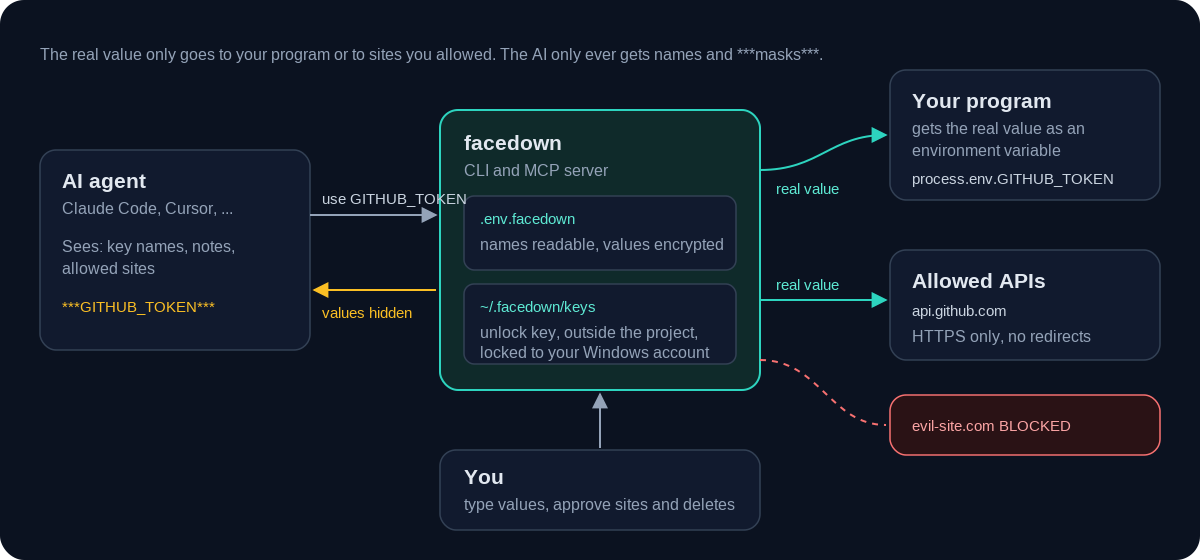
Secrets live in one file in your project, .env.facedown:
# facedown vault v1 id=Qm9iX2lk

# @desc token for the GitHub API
# @allow api.github.com
GITHUB_TOKEN=enc:v2:8kZ0…

# @desc Postgres password (local)
DB_PASSWORD=enc:v2:Lw91…
- Names, notes and allowed sites are plain text. The AI reads them to know what exists.
- Values are encrypted (AES-256-GCM). The unlock key is not in the
project: it is in your home folder (
~/.facedown/keys/), and on Windows it is locked to your Windows account. - There is no command that prints a value. A secret only ever goes to the environment of a program you run, or into a web request to a site you allowed.
- Logs show the key name, not the value. If a program prints a secret it
comes out as
***GITHUB_TOKEN***, also when it was base64, hex or URL encoded first. - You approve the risky steps. Typing a value, allowing a new site and deleting a secret all happen in a window on your screen.
Install
You need Node.js 20 or newer.
Claude Code (the MCP server plus five slash commands, in every project). Type this in Claude Code:
/plugin install facedown --marketplace necromancer124/facedown
On Claude Code older than 2.1.275, use two steps instead:
/plugin marketplace add necromancer124/facedown
/plugin install facedown@facedown
Then start a new session.
Command line:
npm install -g facedown
Or run it without installing: npx facedown help.
Renamed: this project was called blind-env for its first day. If you installed that, switch to
facedown. Old.aienvvaults and their keys keep working: facedown finds and reads them.
From source:
git clone https://github.com/necromancer124/facedown
cd facedown
npm link
Use it in Claude Code
| Command | What it does |
|---|---|
/addKey NAME what it is for | Opens a password window. You type the value; Claude never sees it. |
/keys | Lists names, notes and allowed sites. Never values. |
/allowSite NAME api.example.com | Lets a key be sent to a site. You confirm in a window first. |
/removeSite NAME api.example.com | Stops a key being sent to a site. |
/removeKey NAME | Deletes a secret. You confirm in a window first. |
Everything else you just ask for in plain words ("use GITHUB_TOKEN to list my repos"), and Claude uses the facedown tools.
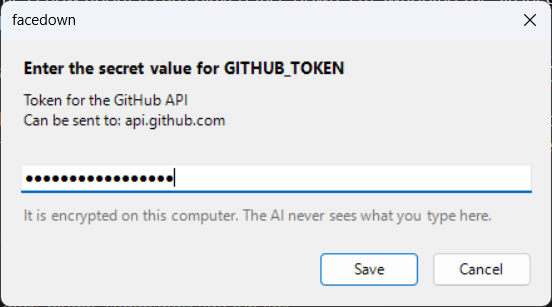 | 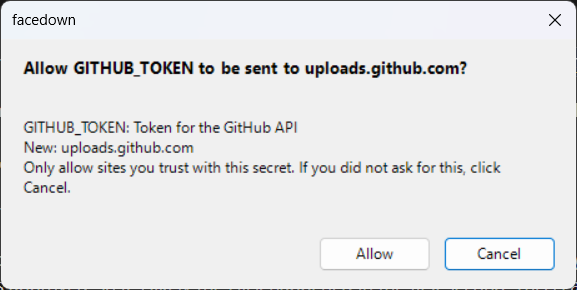 | 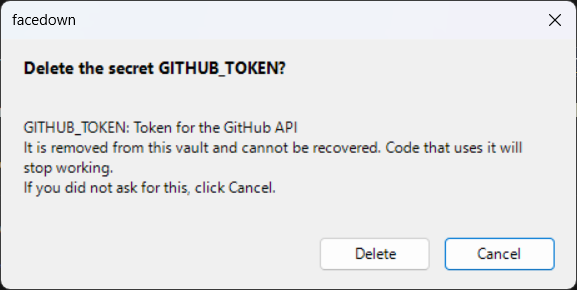 |
| /addKey: you type the value | /allowSite: you approve new sites | /removeKey: you approve deletes |
In the windows, Enter means Cancel: approving always takes a click.
Use it in a terminal
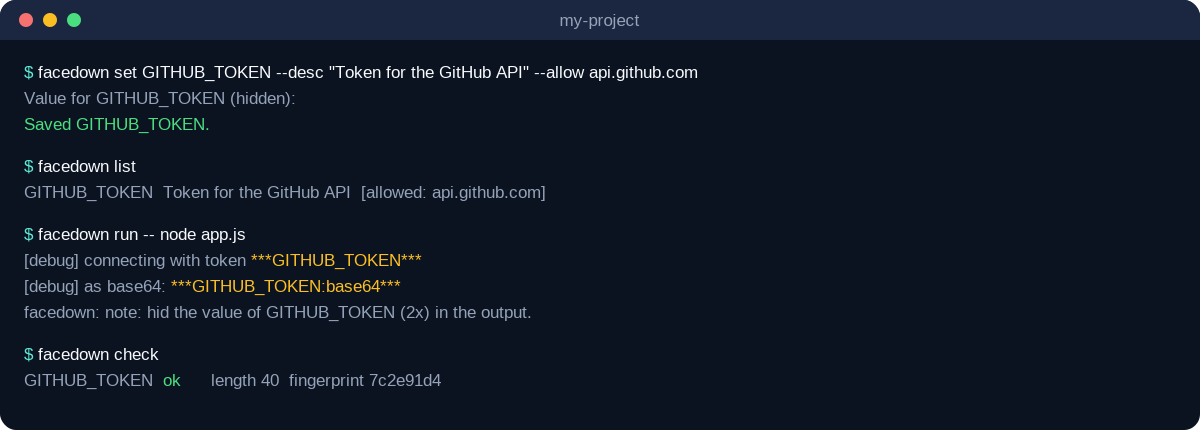
facedown set GITHUB_TOKEN --desc "token for the GitHub API" --allow api.github.com
You type the value with hidden input. If there is no terminal to ask in, the password window opens instead.
facedown run -- node app.js
app.js reads process.env.GITHUB_TOKEN as usual. Your code can be in any
language: it is just an environment variable.
In your own terminal, leaving out --keys passes every key. Without a terminal
(which is how an AI agent runs commands) run asks for the keys by name, so a
program only ever gets the secrets it needs:
facedown run --keys GITHUB_TOKEN -- node app.js
--all-keys passes every key on purpose. Avoid it when an AI runs the command:
any program it starts would see all your secrets.
| Command | What it does |
|---|---|
facedown init | Create a .env.facedown vault in this folder (set does it for you) |
facedown set NAME | Add or replace a secret (--desc, --allow, --stdin) |
facedown list | Names, notes and allowed sites (--json) |
facedown check | Confirms each secret decrypts; shows length and a fingerprint |
facedown run --keys A,B -- cmd | Run a command with those secrets as environment variables |
facedown allow NAME site… | Set the allowed sites (adding one asks you first) |
facedown rm NAME | Delete a secret (asks you first) |
facedown export FILE / import FILE | Move a vault to another computer, with a passphrase |
facedown mcp | Start the MCP server for AI agents |
Debugging: printing a secret is allowed
Your code can log a secret like any other variable. The log shows which key it was instead of the value, and how it was encoded:
[debug] connecting with token ***GITHUB_TOKEN*** | as base64: ***GITHUB_TOKEN:base64***
facedown: note: hid the value of GITHUB_TOKEN (2x) in the output. Logs show the key name instead of the value.
--quietdrops the note line.--stricttreats a printed secret as an error and fails the run with exit code 97. SetFACEDOWN_STRICT=1to make every run strict.
facedown check shows a fingerprint that stays the same until the value
changes, so you can tell "still the old token" from "the new one" at a glance.
It is made with the vault key and the key name, so it cannot be used to guess
the value.
Allowed sites
A key can only be sent (with http_request) to the sites on its list. A new
key has an empty list.
facedown allow GITHUB_TOKEN api.github.com
allowsets the whole list, so name every site you want.*.github.comcovers every subdomain (notgithub.comitself).facedown allow NAME --clearremoves all sites.- Adding a site to a saved secret always asks you first, in a confirmation window on Windows (or a y/N question in a terminal elsewhere), even when an AI runs the command. Removing sites needs no confirmation.
set NAME --allow sitesets the sites together with a new value, so no window asks about them: a value already stored is never sent anywhere new this way. When you type the new value in the password window, new sites are markedNEWthere.- The list is protected by the encryption: if someone adds a site by editing
.env.facedownby hand, that key stops working instead of being sent there.
Moving to another computer
A vault only opens on the computer and Windows account that made it. To take your secrets along, export them with a passphrase you choose:
facedown export backup.facedown
On the new computer, in your project folder:
facedown import backup.facedown
- Both commands ask for the passphrase in a window (or with hidden typing in a terminal on Linux and macOS). There is no way to pass it on the command line or through stdin, and no MCP tool for either: only you can export.
- The export holds every secret, with its note and allowed sites, encrypted with your passphrase (scrypt and AES-256-GCM). Keep the file safe: with the passphrase it opens everything in it. Delete it once it is imported.
importadds to the vault in the current folder, or makes a new one. If a name already exists there, nothing is imported.
For other AI agents (MCP server)
facedown mcp is a standard MCP server, so any agent that speaks MCP can use
it (setup for Cursor, VS Code and Claude Desktop: docs/CLIENTS.md). Without the plugin, for Claude Code in your project folder:
claude mcp add facedown -- facedown mcp
The agent gets six tools:
| Tool | What it does |
|---|---|
list_keys | Which vault file is in use, plus names, notes and allowed sites. Never values. |
add_key | Opens a private window where you type the value. |
run_with_secrets | Runs a command with the chosen keys as environment variables (in cmd.exe on Windows, so %NAME%). Output is cleaned. The command also gets the AI app's own environment variables, which facedown does not hide. |
http_request | Sends a web request with {{KEY_NAME}} filled in. Only to allowed sites, HTTPS only, redirects not followed, response cleaned. |
allow_hosts | Adds or removes allowed sites. Adding opens a confirmation window; nothing changes unless you click Allow. |
remove_key | Deletes a secret. Opens a confirmation window; nothing is deleted unless you click Delete. |
If you open this repo itself in Claude Code, .mcp.json and
.claude/commands/ give you the server and the commands without installing
anything. Start the session in the repo folder: a session that starts
elsewhere does not load them until it moves into the repo.
What it protects, and what it does not
It does protect against:
- secret values ending up in the chat, the AI's memory, transcripts or logs;
- the AI reading secrets from a file in your project;
- a program printing a secret by accident;
- a web page tricking the AI into sending a key to the wrong site through
http_request.
An allowed site is trusted with the key. If you allow api.github.com, the AI
could still send the token there in a way that stores it, for example inside a
new gist. Allow only the API a key is for, and keep run_with_secrets and
http_request approvals in Claude Code switched on for anything sensitive.
It does not protect against an AI that has a shell and is trying to steal a secret. An agent that can run any command as you can write a program that scrambles the secret before printing it (so the cleaner misses it), sends it to a server, unlocks the key file the same way facedown does, or even "click" the confirmation window with simulated key presses. Nothing running under your own account can fully stop that.
So think of facedown as a seat belt, not a vault door: it stops the common,
accidental ways secrets leak to an AI. The strongest setup is an agent that has
only the http_request tool and no shell. Then the allowed-sites list is a
real barrier.
Other limits:
- Values must be at least 8 characters. Hiding a short value gives it away
(
testmasked insidetestingshows what it is), so shorter ones are refused unless--allow-shortis given. Only use that for things that really are short, like a PIN: a short value is easy to spot in output, and values under 4 characters are not hidden at all. Key names are never masked, even when a value appears inside one. - The vault only opens on the computer and account that created it. To move
it, use
facedown exportandfacedown import. - The windows exist on Windows only. On Linux and macOS use
facedown set NAMEin a terminal; those platforms are untested.
Found a security problem? See SECURITY.md. Think you can get a secret out anyway? Try to break it.
Hall of fame
People who found a real security problem in facedown and reported it privately. Thank you.
No one yet. Be the first.
More
- FAQ and troubleshooting
- Cursor, VS Code, Claude Desktop and other MCP tools
- Examples: Node and Python
Fun fact
The runner-up name was .env.broker, because it is the better env.
It was just a little too cheesy. (And before that, for one day, the project
was called blind-env.)
Tests
npm test
The tests run on every push on Windows with Node 20, 22 and 24. The full manual test, written as a prompt for an AI session, is in docs/TEST-PROMPT.md.
Updates
Once a day facedown asks npm whether there is a newer version, and says so in
one line after a command (and in list_keys, so your AI agent tells you). It
never updates anything by itself, and when you are offline it says nothing.
- A version with a known security problem gets a loud warning: the owner
marks it on npm with a message starting with
SECURITY. FACEDOWN_BLOCK_INSECURE=1turns that warning into a hard stop:run,export,run_with_secretsandhttp_requestrefuse until you update. It is off by default on purpose: a hijacked npm account must not be able to stop everyone, and facedown must keep working offline. If the check cannot reach npm, facedown carries on.FACEDOWN_NO_UPDATE_CHECK=1turns the check off (it is also off in CI). The check sends nothing about you or your secrets: it is a plain download of facedown's public package info.
Versions
facedown uses semantic versioning. What stays stable from 1.0 on (the vault format, commands, flags, MCP tools and environment variables) is in docs/STABILITY.md; every change is in CHANGELOG.md.
Roadmap
- Linux and macOS: keychain protection for the key, and the windows
logintool: fill a username and password into a browser form- "This key may only be used by this command" rules for
run_with_secrets
License
MIT, see LICENSE.
facedownnpm install facedown