
google-maps-directions
io.github.johnisanerd/google-maps-directions
Google Maps routes, ETAs, and turn-by-turn steps via the Apify Directions API, hosted MCP.
Documentation
🗺️ Google Maps Directions API: routes, ETA, and turn-by-turn steps as JSON
The most efficient, reliable, and developer-friendly way to use the Google Maps Directions API.
Actor page: apify.com/johnvc/google-maps-directions-api Input schema: apify.com/johnvc/google-maps-directions-api/input-schema
Call the Google Maps Directions API from Python or from any MCP client and get directions between an origin and a destination as clean, structured JSON: route options for driving, transit, walking, cycling, and flight, with distance, ETA, traffic-aware duration ranges, resolved place coordinates, turn-by-turn steps, and a direct Google Maps link. Provide addresses, GPS coordinates, or place IDs.
Video Walkthrough

Quick Start
Prerequisites
- Python 3.11 or higher
- An Apify account and API key (get a free key here)
-
Clone the repository
git clone https://github.com/johnisanerd/Apify-Google-Maps-Directions-API.git cd Apify-Google-Maps-Directions-API -
Install dependencies with UV
# Install UV if you do not have it: curl -LsSf https://astral.sh/uv/install.sh | sh # Install project dependencies: uv sync -
Configure your API key
cp .env.example .env # Edit .env and add your Apify API key # Get your free API key at: https://apify.com?fpr=9n7kx3 -
Run the example
uv run python google-maps-directions-api-example.py
Alternative: set the API key directly
export APIFY_API_TOKEN="your_api_key_here"
uv run python google-maps-directions-api-example.py
Explore every input
Once the basic run works, google-maps-directions-api-cookbook.py is a runnable catalog of every feature (all travel modes, coordinates and place-ID inputs, avoidance, units, localization, and transit time and routing). See the cookbook table under "Usage Examples" below.
Why Use This Google Maps Directions API?
Every travel mode in one call. Ask for the best options across modes, or pin a single mode: driving, transit, walking, cycling, flight, or two-wheeler. One request returns every route option Google offers for your origin and destination.
Turn-by-turn detail, structured. Each route option carries distance, duration, a traffic-aware typical duration range, a route summary, route notes (tolls, conditions), and trips broken down into individual turn-by-turn steps. Transit options include stops, lines, operators, and times.
Flexible inputs. Set your origin and destination as an address or place name, exact GPS coordinates, or a Google Maps place ID. Choose units, avoid tolls, highways, or ferries, tune transit routing, and set a departure or arrival time.
Predictable pricing. A single route lookup is one flat charge. No surprise per-step or per-byte billing.
Built for agents. The Actor is MCP-ready, so you can load it as a tool in Claude or Cursor and ask for directions in plain language (see the install sections below).
Features
Core Capabilities
- Driving, transit, walking, cycling, flight, and two-wheeler routing
- Distance, ETA, and traffic-aware duration ranges
- Turn-by-turn steps per leg, with per-step distance and duration
- Transit stops, lines, operators, and departure/arrival times
- Resolved origin/destination addresses, place IDs, and GPS coordinates
- A direct Google Maps link for each route
Data Quality
- Clean, consistent JSON with one row per lookup
- Real units, formatted and raw (meters/seconds plus human-readable strings)
- Country and language targeting for localized place names and instructions
Usage Examples
Basic Example
{
  "start_addr": "New York, NY",
  "end_addr": "Boston, MA"
}
Advanced Example
{
  "start_addr": "Brooklyn, NY",
  "end_addr": "Times Square, New York, NY",
  "travel_mode": "transit",
  "transit_routing": "less_walking",
  "time_type": "arrive_by",
  "time_value": "2026-06-01T09:00:00",
  "distance_unit": "miles",
  "hl": "en",
  "gl": "us"
}
Run every input from Python (cookbook)
google-maps-directions-api-cookbook.py is a runnable catalog that exercises every input the API supports, with a clean printed summary per route. Run one example by name, or all:
uv run python google-maps-directions-api-cookbook.py            # runs 'basic'
uv run python google-maps-directions-api-cookbook.py walking
uv run python google-maps-directions-api-cookbook.py all        # runs every example (each is billed)
| Example | What it shows |
|---|---|
basic | Best routes across all modes (the default) |
driving | Driving only, distances in miles |
walking | Walking directions |
cycling | Cycling directions |
two_wheeler | Two-wheeler (motorcycle/scooter; select regions like India) |
transit | Public transit directions |
transit_advanced | Transit with arrive-by time, preferred mode, and less walking |
flight | Flight option for a long-haul route |
coordinates | Origin and destination as latitude,longitude |
place_ids | Origin and destination as Google Maps place IDs |
avoid | Avoid tolls, highways, and ferries |
depart_at | Future departure time (traffic-aware ETA) |
localized | Kilometers and French instructions |
Input Parameters
Provide an origin (an address, coordinates, or a place ID) and a destination.
| Parameter | Type | Required | Default | Description |
|---|---|---|---|---|
start_addr | str | one of origin | - | Origin address or place name. |
end_addr | str | one of dest | - | Destination address or place name. |
start_coords | str | no | - | Origin as latitude,longitude. Overrides start_addr. |
end_coords | str | no | - | Destination as latitude,longitude. Overrides end_addr. |
start_data_id | str | no | - | Origin Google Maps place ID. Overrides start_addr. |
end_data_id | str | no | - | Destination Google Maps place ID. Overrides end_addr. |
travel_mode | str | no | best | best, driving, cycling, walking, transit, flight, two-wheeler. |
distance_unit | str | no | auto | auto, km, or miles. |
avoid_tolls | bool | no | false | Prefer routes without toll roads. |
avoid_highways | bool | no | false | Prefer routes that avoid highways. |
avoid_ferries | bool | no | false | Prefer routes that avoid ferries. |
transit_prefer | str | no | none | bus, subway, train, tram, or light_rail (transit only). |
transit_routing | str | no | none | fewer_transfers, less_walking, or wheelchair (transit only). |
time_type | str | no | leave_now | leave_now, depart_at, or arrive_by. |
time_value | str | no | - | ISO 8601 datetime or Unix timestamp, used with depart_at / arrive_by. |
hl | str | no | en | Interface language code (ISO 639-1). |
gl | str | no | us | Country code (ISO 3166-1). |
Output Format
One row per run. Trimmed example for New York, NY to Boston, MA:
{
  "result_type": "directions",
  "start": "New York, NY",
  "end": "Boston, MA",
  "travel_mode": "best",
  "directions_found": true,
  "directions_count": 3,
  "best_duration": "3 hr 38 min",
  "best_distance": "215 miles",
  "places_info": [
    { "address": "New York", "data_id": "0x89c24fa5d33f083b:0xc80b8f06e177fe62", "gps_coordinates": { "latitude": 40.7127753, "longitude": -74.0059728 } },
    { "address": "Boston, Massachusetts", "data_id": "0x89e3652d0d3d311b:0x787cbf240162e8a0", "gps_coordinates": { "latitude": 42.3555076, "longitude": -71.0565364 } }
  ],
  "directions": [
    {
      "travel_mode": "Driving",
      "via": "CT-15 N and I-90 E",
      "distance": 346243,
      "duration": 13082,
      "formatted_distance": "215 miles",
      "formatted_duration": "3 hr 38 min",
      "typical_duration_range": "3 hr 21 min to 4 hr 10 min",
      "extensions": ["Fastest route now due to traffic conditions", "This route has tolls."],
      "trips": [
        {
          "travel_mode": "Driving",
          "title": "Get on FDR Dr",
          "formatted_distance": "0.9 mi",
          "formatted_duration": "5 min",
          "details": [
            { "title": "Head toward Park Row", "action": "straight", "formatted_distance": "200 ft", "formatted_duration": "21 sec" }
          ]
        }
      ]
    }
  ],
  "durations": [
    { "travel_mode": "Driving", "formatted_duration": "3 hr 38 min" },
    { "travel_mode": "Transit", "formatted_duration": "4 hr 25 min" },
    { "travel_mode": "Flight", "formatted_duration": "1 hr 15 min" }
  ],
  "google_maps_directions_url": "https://www.google.com/maps/dir/...",
  "gl": "us",
  "hl": "en",
  "fetched_at": "2026-05-29T12:00:00+00:00"
}
This Actor is MCP-server-compatible, so AI assistants can call the Google Maps Directions API as a tool through Apify's hosted MCP server.
The Actor's MCP server URL is always built with the actors and docs helper tools plus this one Actor:
https://mcp.apify.com/?tools=actors,docs,johnvc/google-maps-directions-api
The actors and docs tools let the assistant discover and read Apify docs, while preloading just this one Actor keeps the tool list small. Auth is either OAuth in the browser when offered, or your Apify API token (the same APIFY_API_TOKEN secret used by the Python example). Get a token at https://console.apify.com/settings/integrations and a free Apify account at https://apify.com?fpr=9n7kx3 .
Install in Claude Cowork Desktop
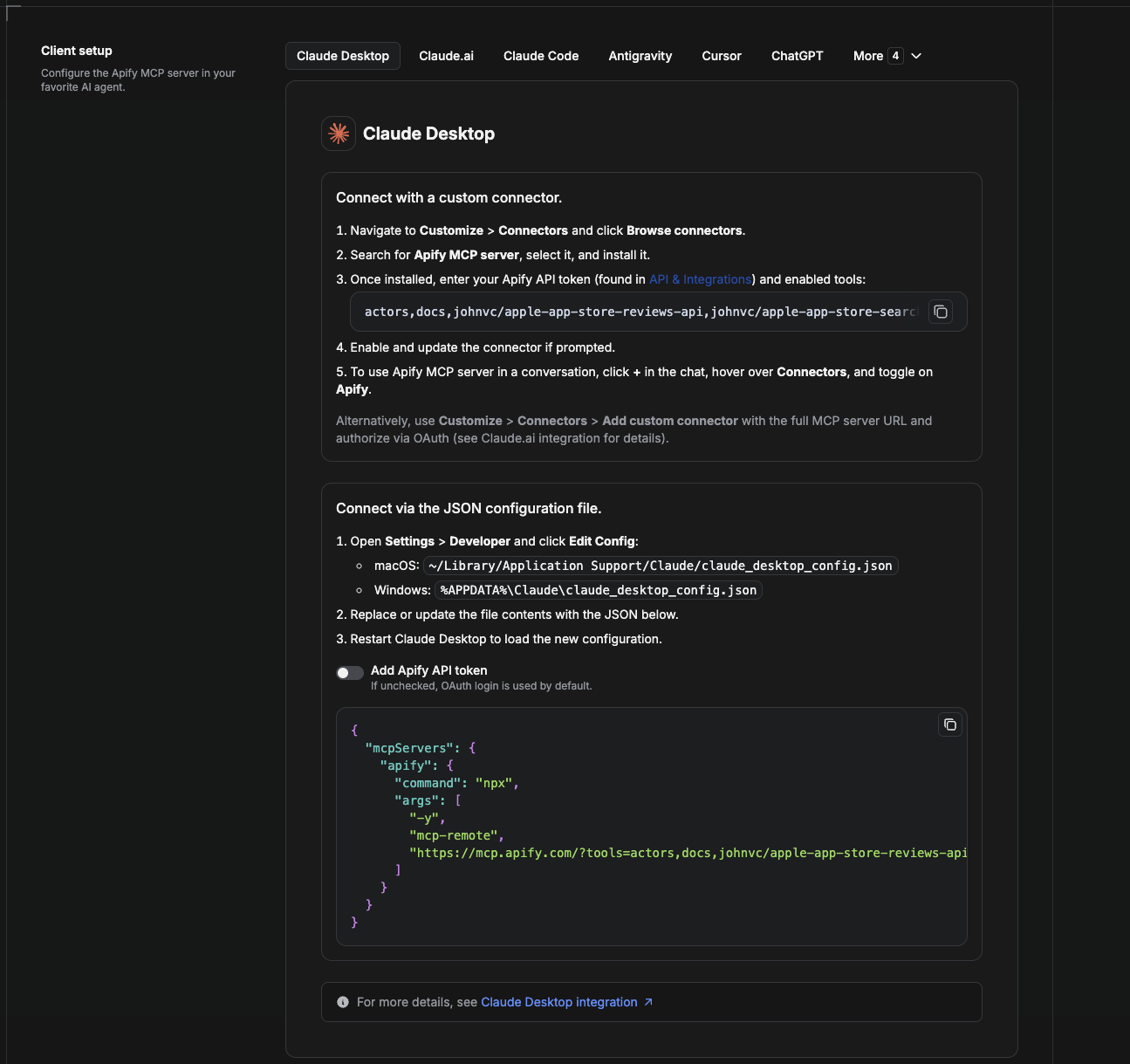
Cowork is the desktop app's automation mode. To give it the Google Maps Directions API as a tool, add the Apify MCP server as a connector.
- Open the Claude desktop app and go to Settings → Connectors (or Settings → Developer → Edit Config to edit
claude_desktop_config.jsondirectly).- macOS:
~/Library/Application Support/Claude/claude_desktop_config.json - Windows:
%APPDATA%\Claude\claude_desktop_config.json
- macOS:
- Add the Apify MCP server, preloaded with only this Actor:
{
  "mcpServers": {
    "apify": {
      "command": "npx",
      "args": [
        "-y",
        "mcp-remote",
        "https://mcp.apify.com/?tools=actors,docs,johnvc/google-maps-directions-api"
      ]
    }
  }
}
- Restart the app. When Cowork first calls the tool, complete the OAuth prompt in your browser, or add your Apify API token in the connector settings to skip OAuth.
- In a Cowork chat, confirm the tool is available and ask it to run the Google Maps Directions API.
Download the desktop app and start a free trial: https://claude.ai/referral/uIlpa7nPLg More help: https://docs.apify.com/platform/integrations/claude-desktop
Install in Claude Code
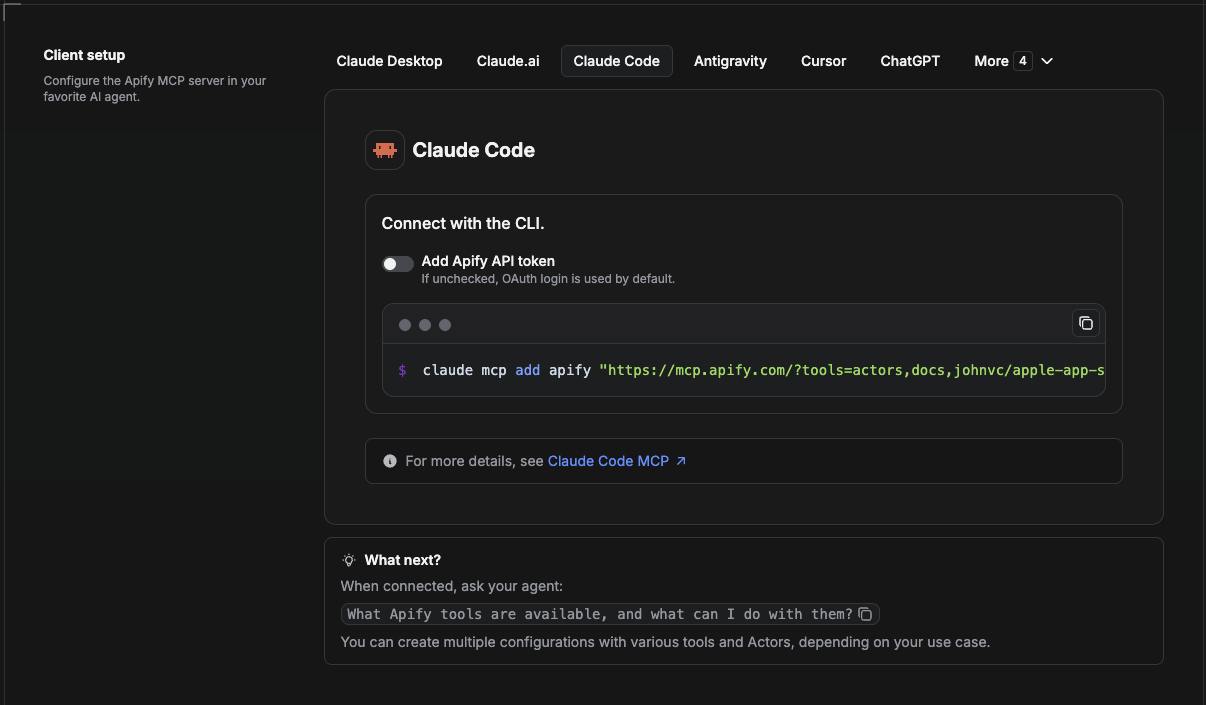
Claude Code is the command-line tool. Add the Actor's MCP server with one command:
claude mcp add --transport http apify \
  "https://mcp.apify.com/?tools=actors,docs,johnvc/google-maps-directions-api"
To use a token instead of browser OAuth:
claude mcp add --transport http apify \
  "https://mcp.apify.com/?tools=actors,docs,johnvc/google-maps-directions-api" \
  --header "Authorization: Bearer YOUR_APIFY_TOKEN"
Then verify with claude mcp list, or run /mcp inside a session. Ask Claude Code to call the Google Maps Directions API.
Try Claude Code free: https://claude.ai/referral/uIlpa7nPLg Claude Code MCP docs: https://code.claude.com/docs/en/mcp
Install in Claude (website)
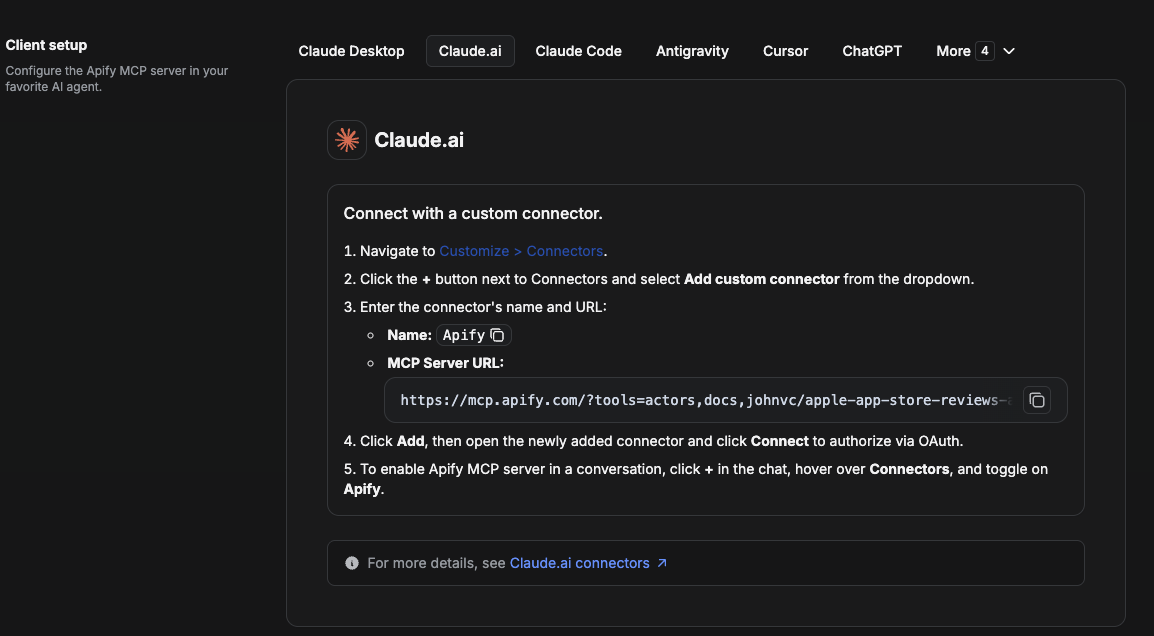
On claude.ai you add Apify as a connector, then enable just this Actor's tool.
- Go to Settings → Connectors → Browse connectors and search for Apify MCP server. Install it (enable or update if prompted).
- When connecting, authenticate with your Apify API token, and enable the tool
johnvc/google-maps-directions-api. - In any chat, open + → Connectors and turn on Apify.
- Alternatively, choose Add custom connector and paste the full MCP URL
https://mcp.apify.com/?tools=actors,docs,johnvc/google-maps-directions-api, using OAuth when prompted. - Ask Claude to run the Google Maps Directions API.
Open Claude on the web: https://claude.ai/referral/uIlpa7nPLg
Install in Cursor
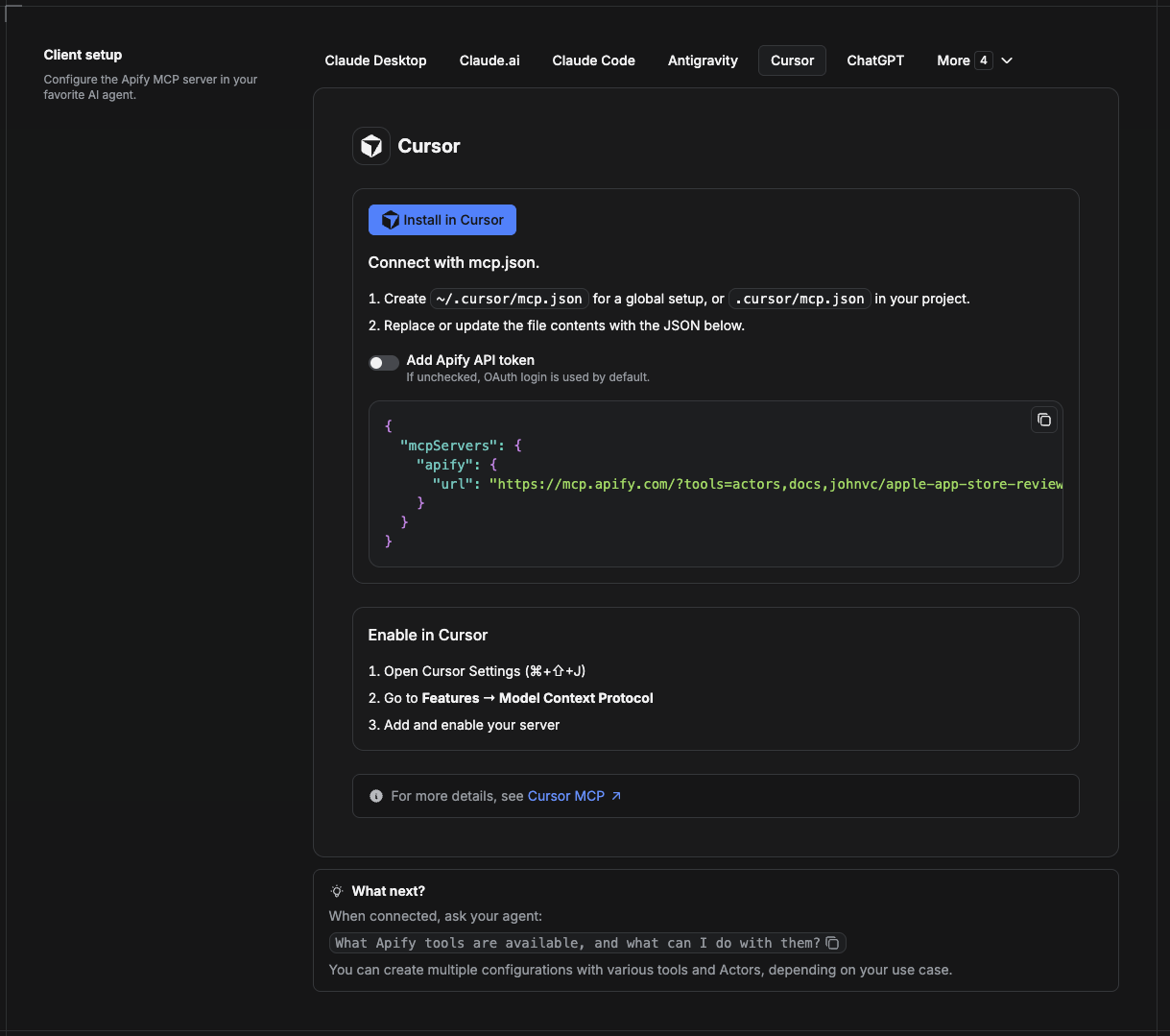
Cursor reads MCP servers from a project file at .cursor/mcp.json.
- In your project, create
.cursor/mcp.json:
{
  "mcpServers": {
    "apify": {
      "url": "https://mcp.apify.com/?tools=actors,docs,johnvc/google-maps-directions-api"
    }
  }
}
- If you prefer token auth over browser OAuth, add a header:
{
  "mcpServers": {
    "apify": {
      "url": "https://mcp.apify.com/?tools=actors,docs,johnvc/google-maps-directions-api",
      "headers": { "Authorization": "Bearer YOUR_APIFY_TOKEN" }
    }
  }
}
- Open Cursor → Settings → MCP and confirm the apify server is connected (green dot).
- In Composer or Chat, ask Cursor to call the Google Maps Directions API.
New to Cursor? Get it here: https://cursor.com/referral?code=XQP4VBLI3NNX
Install in ChatGPT
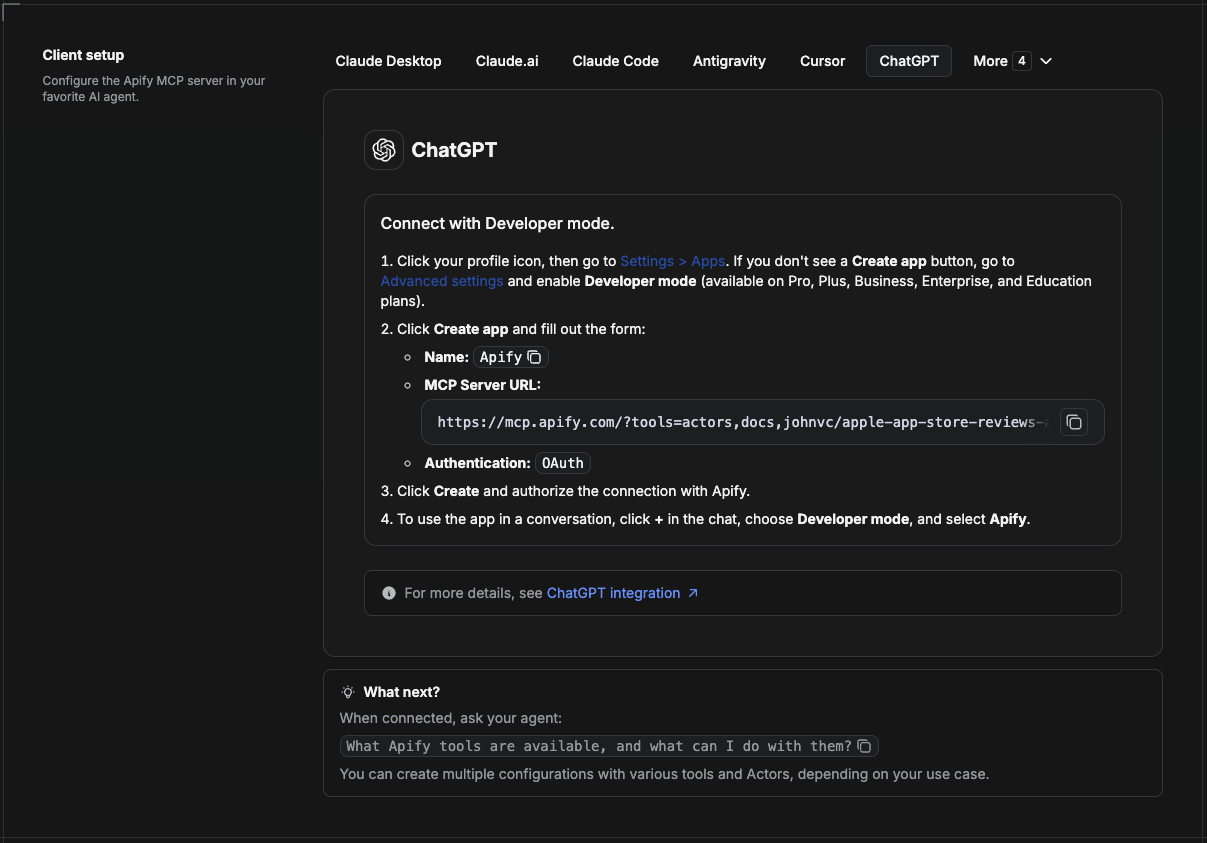
ChatGPT connects to the Apify MCP server through Developer mode (available on ChatGPT Pro, Plus, Business, Enterprise, and Education plans).
- Click your profile icon, then go to Settings > Apps. If you do not see a Create app button, open Advanced settings and enable Developer mode.
- Click Create app and fill out the form:
- Name: Apify
- MCP Server URL:
https://mcp.apify.com/?tools=actors,docs,johnvc/google-maps-directions-api - Authentication: OAuth
- Click Create and authorize the connection with Apify.
- To use the app in a conversation, click + in the chat, choose Developer mode, and select Apify.
More help: https://docs.apify.com/platform/integrations/mcp
Use the Google Maps Directions API to power your routing, logistics, and travel workflows with reliable, structured results.
🤖 Ask an AI assistant about this Actor
Open a ready-to-send prompt about the Google Maps Directions API in the AI of your choice:
- 💬 ChatGPT
- 🧠 Claude
- 🔍 Perplexity
- 🅒 Copilot
Last Updated: 2026.10.27
No installation packages available.
Remote
Related Servers
io.github.johnisanerd/appstore-reviews
Apple App Store reviews as structured JSON via the Apify Reviews API Actor, hosted MCP.
io.github.johnisanerd/ashby-jobs
Ashby job boards with employer-published salary data, via an Apify Actor, hosted MCP.
io.github.johnisanerd/baidu-search
Baidu web search results for China SEO and research. Paid, on Apify's hosted MCP.